


If your day starts with a dock door that won't close, a fire door inspection record nobody can find, and three different people insisting they already reported the same issue, you don't have a maintenance problem. You have a tracking problem.
A good facility maintenance log template excel file fixes that. For commercial doors, loading docks, operators, restraints, seals, and access equipment, the right spreadsheet does more than store notes. It gives you a working record of what failed, what was serviced, what's overdue, and what's starting to cost you too much.
This guide is built for facilities that manage real-world door and dock equipment, not generic office assets. You'll see how to structure the workbook, which fields matter, which Excel features are worth using, and how to turn a simple log into a practical control tool. The goal is straightforward. Fewer missed tasks, cleaner audits, better uptime, and maintenance decisions backed by records instead of memory.
Meta description: Facility maintenance log template excel for doors and docks. Learn how to structure, automate, and customise a practical Excel log for safer uptime.
Why a Digital Maintenance Log is Non-Negotiable
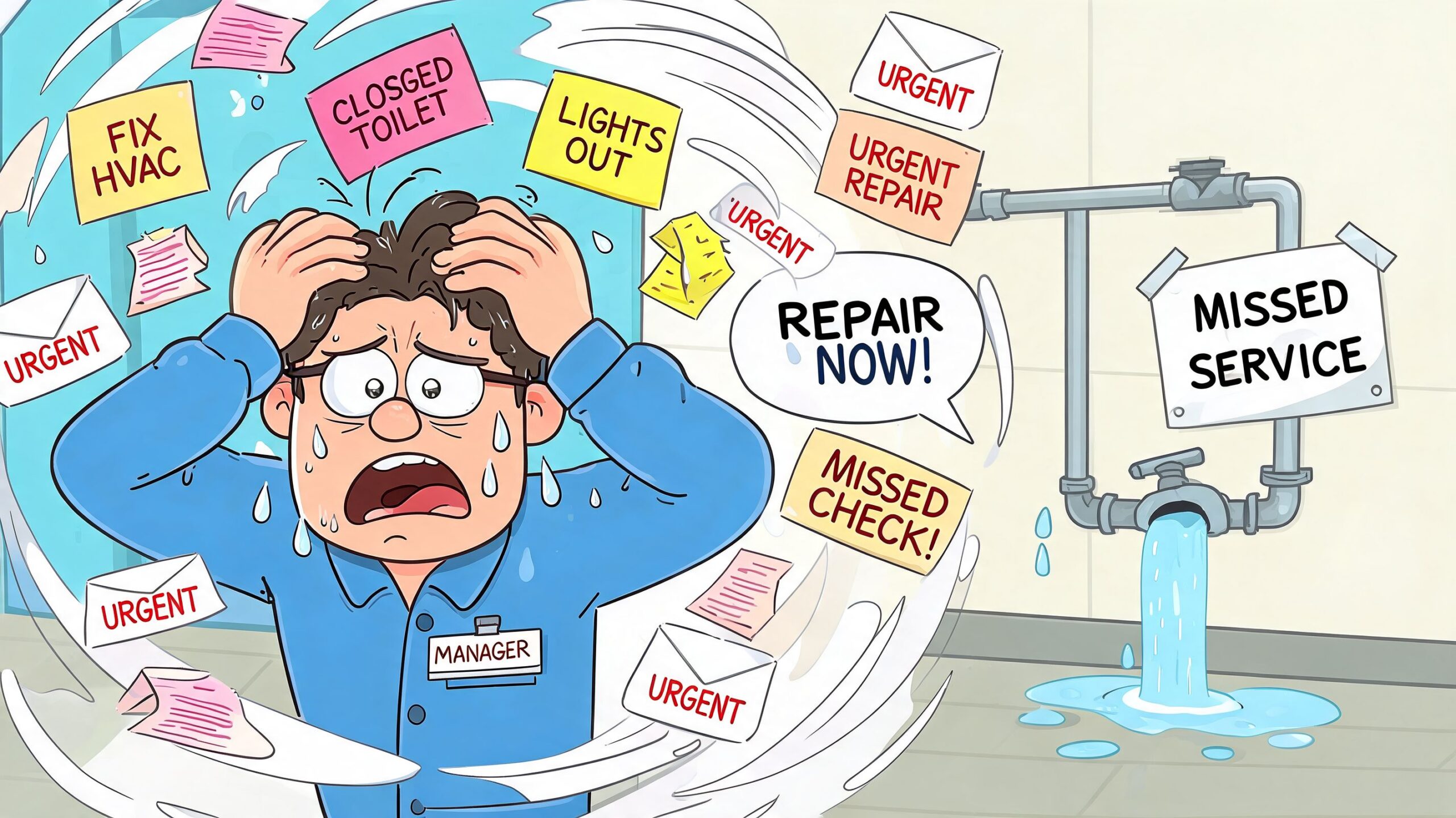
Most facility managers have lived through the same pattern. A technician mentions a sticking sectional door in passing. Someone sends an email about a dock leveler lip not returning smoothly. A supervisor writes “check west entrance operator” on a notepad. Two weeks later, the same asset fails during a busy shift, and nobody's sure what was done last time.
That's exactly why a facility maintenance log template excel file matters. It takes scattered maintenance activity and puts it into one place that your team can sort, search, review, and act on. For doors and docks, that matters more than people think. These assets cycle constantly, affect safety, and often sit directly in the path of shipping, receiving, and pedestrian traffic.
What poor tracking actually costs
Bad records don't just create paperwork headaches. They affect uptime, safety, and operating cost. Poor maintenance tracking contributes to 40% of unplanned downtime in Canadian manufacturing plants, costing the sector approximately $20 billion CAD annually according to the Conference Board of Canada. Facilities using digital or Excel-based maintenance logs have achieved up to a 25% reduction in energy consumption and a 15% extension in asset lifespan according to Natural Resources Canada.
For a warehouse or industrial site, that shows up in familiar ways:
- Missed preventive work: Rollers don't get checked, hinges go dry, and dock equipment wears harder than it should.
- Repeat callouts: The same door gets patched several times because nobody can see the history.
- Compliance gaps: Fire door testing, service notes, and corrective actions become hard to retrieve during an audit or claim.
- Operational disruption: Shipping schedules get squeezed when a door, restraint, or leveler goes down at the wrong time.
Practical rule: If the maintenance history lives in email inboxes, whiteboards, and technician memory, you don't have a maintenance system yet.
Why Excel still works on the floor
A lot of teams jump straight to software comparisons. That can be useful, but it can also slow action. Excel works because it is widely available, supervisors understand it, and it's flexible enough to track door IDs, service dates, defect notes, parts used, downtime, and next due tasks without a long rollout.
If you also manage card access, visitor traffic, or shared entry points, it helps to see how maintenance records connect with broader building operations. Resources like Nimbio building access solutions are useful for understanding that bigger picture around access control and building workflows.
For teams that need support beyond the spreadsheet itself, Wilcox also outlines its building maintenance work services, which is relevant when you're trying to align records with actual field service activity.
Downloading and Structuring Your Excel Template
A useful template shouldn't feel clever. It should feel obvious. When someone opens the file, they should know where assets live, where service activity gets entered, and where decision-makers can see patterns.
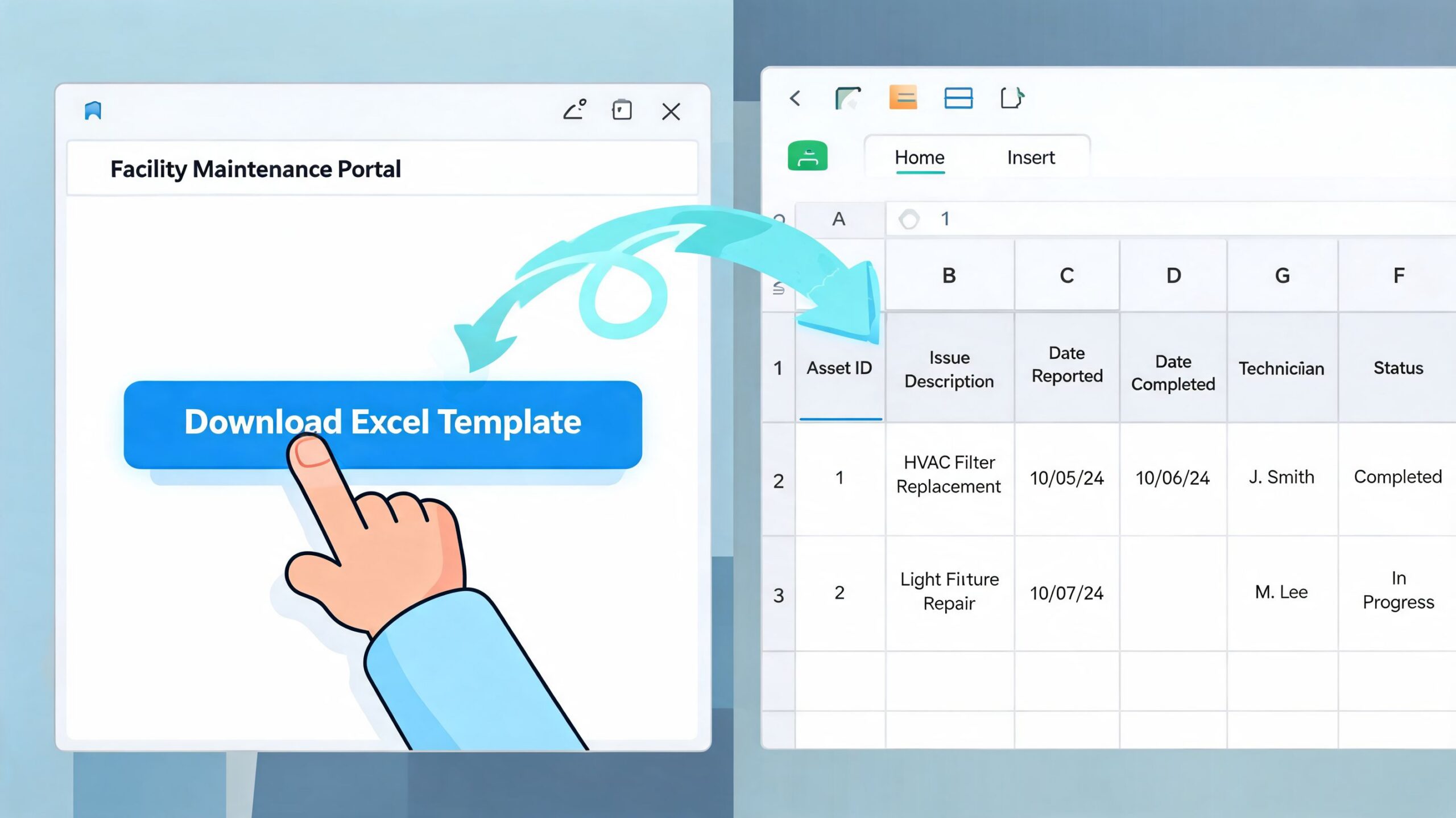
For door and dock environments, I recommend a workbook with three core sheets:
- Asset Inventory
- Maintenance Log
- Dashboard
Build the Asset Inventory first
This sheet is your equipment register. If it's weak, everything downstream gets messy.
Use one row per asset. For commercial doors and loading docks, keep the fields practical:
| Column | What it means | Example |
|---|---|---|
| Asset ID | Unique tag for the equipment | D-12 |
| Asset Type | What the equipment is | Sectional Door |
| Location | Exact site or bay | DC1 Bay 4 |
| Manufacturer | Makes parts lookup easier | Manufacturer name |
| Model | Helps with service planning | Model reference |
| Serial Number | Useful for warranty and identification | Serial reference |
| Install Date | Shows age of asset | Install date |
| Critical Notes | Special requirements | Fire-rated, cold storage |
A junior manager's mistake is often using broad labels like “rear dock door” or “warehouse entrance.” That breaks down fast when you have multiple similar openings. Asset ID has to be specific and consistent. If your technician writes D-12 on the service report, that same ID should appear in the spreadsheet, on the equipment label, and in internal communication.
Keep the Maintenance Log simple enough to use
The second sheet is where the daily work happens. Every issue, inspection, adjustment, and repair goes here. If this sheet has too many fields, people stop filling it in. If it has too few, the history becomes useless.
A practical setup includes:
- Log Entry ID for each event
- Asset ID to tie the work to the right equipment
- Date reported and date completed
- Issue description in plain language
- Action taken
- Parts used
- Technician name or contractor
- Status such as Open, Scheduled, Completed, Monitor
- Next follow-up date
- Downtime notes
The best logs describe the problem the way operations experienced it, then describe the fix the way maintenance performed it.
For example, “door noisy” isn't enough. “Sectional overhead door binds mid-travel on closing, right-side track misalignment noted, rollers inspected and adjusted” is useful. It gives the next technician context and gives management a defensible service record.
Add a Dashboard only after the first two sheets work
Too many teams start with charts. Start with clean data instead. Once your inventory and log sheets are stable, the Dashboard can pull in open issues, overdue PMs, repeat failures, and downtime trends.
If you want a maintenance framework that connects spreadsheet discipline with formal service planning, Wilcox's planned maintenance programs page is a useful benchmark for what a structured PM approach typically includes for door and dock assets.
Automating Your Log with Formulas and Formatting
A spreadsheet becomes useful when it starts preventing mistakes. That's the difference between a digital filing cabinet and an active maintenance tool.
For door and dock equipment, I'd focus on four Excel features first. Not macros. Not complicated formulas. Just the functions that make day-to-day tracking cleaner and faster.
Use dropdowns to stop messy entries
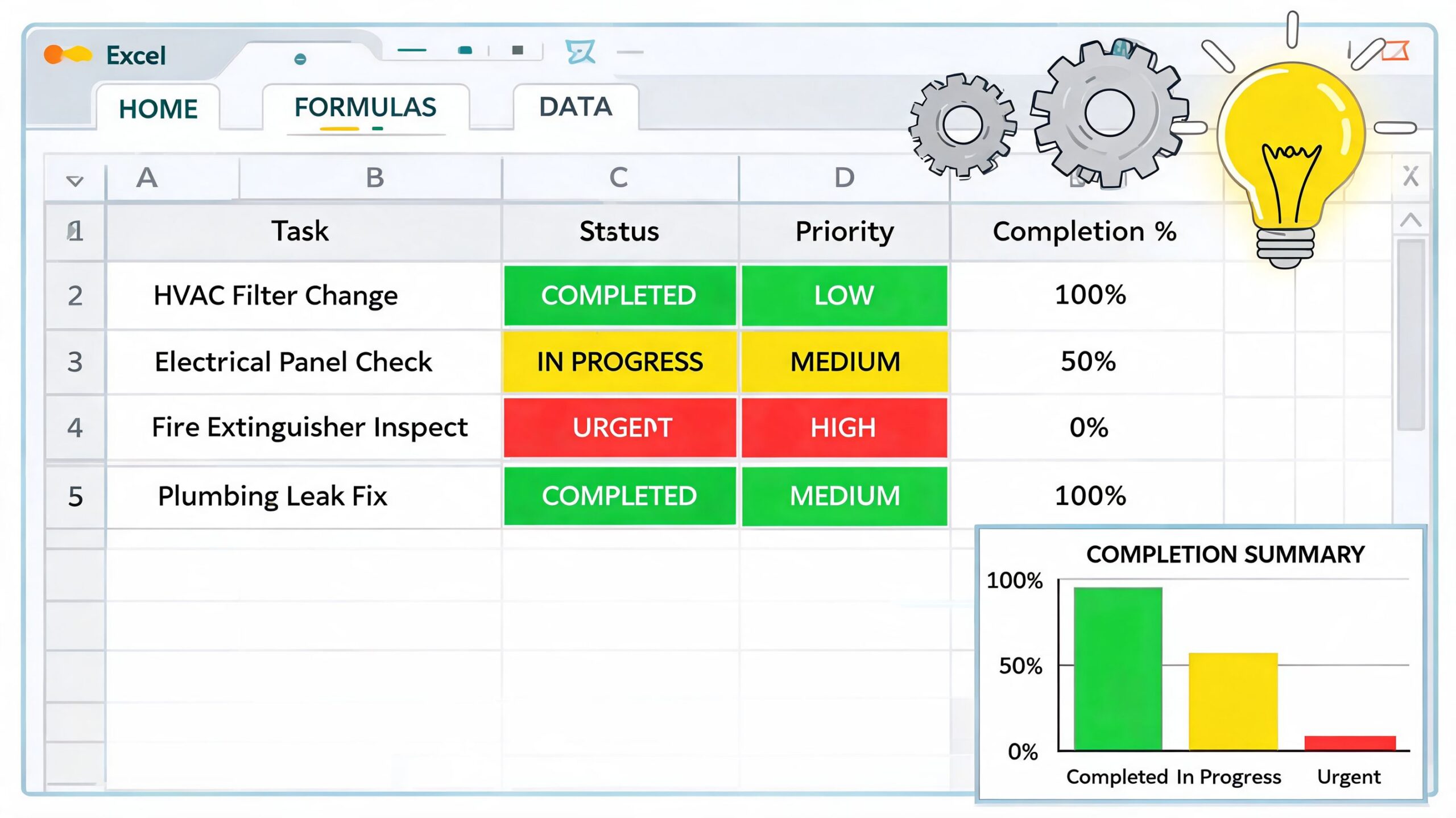
If one person writes “Completed,” another writes “Done,” and another writes “closed,” your filter won't work properly. That's where Data Validation helps. In simple terms, it creates a dropdown list so staff choose from approved options instead of typing whatever comes to mind.
Manual entry errors are found in 42% of maintenance logs, leading to 15% of missed inspections according to CBRE Canada. For a maintenance log, that's more than an admin issue. It means a required check can disappear behind inconsistent wording.
Use dropdowns for fields like:
- Status: Open, Scheduled, Completed, Deferred
- Priority: Low, Medium, High, Safety
- Asset Type: High-speed door, dock leveler, rolling steel door, fire door
- Cause Code: Impact, wear, alignment, spring, operator, unknown
Let colour do the chasing
Conditional Formatting is one of the easiest upgrades you can make. It tells Excel to change the cell colour when a condition is met. For example, if a next service date has passed, the cell turns red. If a repair is due this week, it turns amber. If the work is complete, it goes green.
That matters on busy sites because nobody has time to scan hundreds of rows manually. The spreadsheet should point to what needs attention first.
A practical setup looks like this:
| Condition | Visual cue | Why it helps |
|---|---|---|
| PM overdue | Red fill | Flags missed work immediately |
| Due within a week | Amber fill | Helps supervisors plan ahead |
| Completed | Green fill | Confirms closure |
| High priority open issue | Bold red text | Draws attention during daily review |
Shop-floor habit: Review red and amber cells at the start of every week. If the spreadsheet is only opened after a breakdown, the system isn't doing its job.
Track downtime with one plain formula
For doors and docks, downtime matters because it affects shipping flow, internal movement, and safety controls. Excel can calculate it with a simple subtraction formula: =END_TIME-START_TIME. In plain language, you enter when the asset went out of service and when it returned, and Excel gives you the total outage time.
That same record becomes useful later when you calculate MTTR, which means Mean Time To Repair. That's the average time it takes to restore equipment after a failure. The downtime formula and other practical spreadsheet methods are also reflected in this daily maintenance report Excel template reference.
This short walkthrough gives a good visual sense of how those spreadsheet tools come together in practice.
Schedule future tasks with working-day logic
If you schedule preventive work by counting calendar days, you'll eventually land inspections on weekends, holidays, or shutdown periods. NETWORKDAYS helps by counting working days instead. In simple terms, it lets Excel plan the next due date based on business days rather than every day on the calendar.
That's useful when you're managing recurring tasks such as:
- Bi-weekly door inspections for rollers, hinges, and track condition
- Quarterly dock equipment checks for leveler structure and restraint operation
- Fire door testing intervals where documented records need to stay orderly
- Follow-up service windows after a temporary repair
For maintenance teams working around compliance requirements, this kind of date logic keeps the spreadsheet usable. It also reduces the common problem where a task technically exists in the file but was scheduled in a way nobody could reasonably execute.
Tracking KPIs for Smarter Maintenance Decisions
A maintenance log starts as a record. It becomes valuable when it helps you answer management questions without guessing. Why are repair costs climbing on one dock line? Which doors are improving under preventive maintenance? Which site needs replacement planning instead of another patch?
That's where KPI tracking comes in. You don't need a complicated system to do this. A clean Excel dashboard with PivotTables is enough for many teams.
Three KPIs that actually help on doors and docks
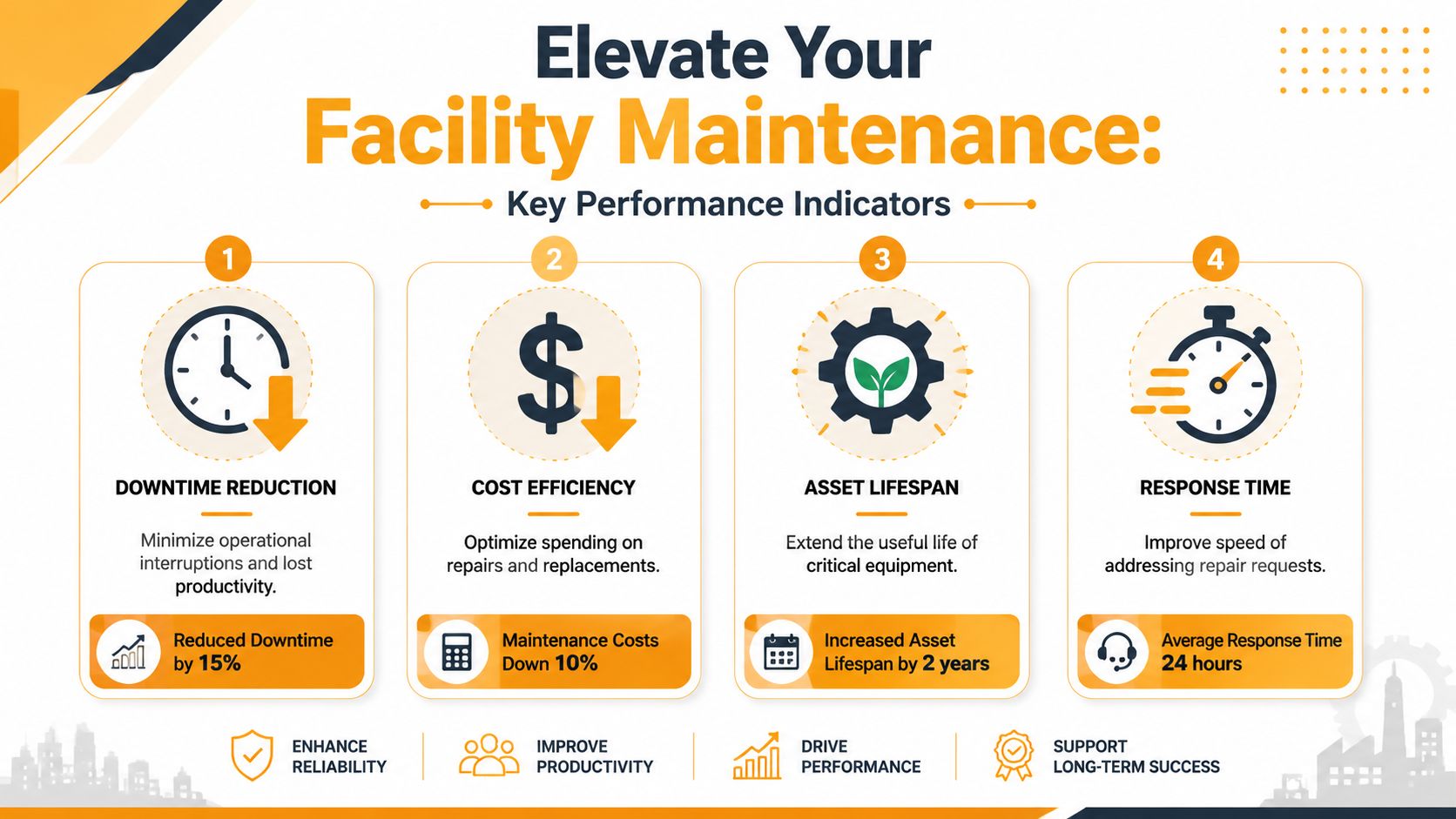
The first KPI is MTBF, or Mean Time Between Failures. In plain language, it tells you how long an asset runs before it breaks down again. If your high-speed freezer door is lasting longer between failures, that usually means your PM work is having an effect.
The second is MTTR, or Mean Time To Repair. That shows how quickly your team restores service after a failure. If one site has long repair times, the issue may be parts availability, contractor response, approval delays, or poor troubleshooting notes.
The third is PM compliance rate. That tells you whether scheduled preventive tasks were completed when they were supposed to be completed. This is the KPI many teams avoid because it exposes discipline problems fast. Still, it's one of the most useful numbers in the workbook.
Good KPI reporting doesn't exist to make the spreadsheet look polished. It exists to show whether the maintenance program is controlling risk.
A simple dashboard layout
You can build the dashboard from the Maintenance Log sheet using a PivotTable. If you haven't used one before, think of it as a fast summary tool. It groups rows for you and totals or counts what matters.
A useful dashboard for commercial door and dock equipment usually includes:
- Open work by asset type
- Downtime by location
- Repeat failures by asset ID
- Completed PMs versus overdue PMs
- Repair history by contractor or technician
If you want a plain-English primer on the terms themselves, this guide to industrial reliability metrics explained is a good companion for managers who want the logic behind MTBF and MTTR without overcomplicating it.
Why this matters to budgets and replacements
Without KPIs, every budget discussion turns into opinion. With KPIs, you can point to a door that has repeated failures, a dock leveler with frequent downtime, or a site where PM compliance is slipping.
There's also a broader systems question here. If your Excel workbook is doing its job but your team is outgrowing manual coordination, it helps to compare that setup against purpose-built options. Wilcox's overview of facility maintenance software is useful when you're deciding whether to keep Excel as the main tool or use it as a stepping stone.
Customizing the Template for Your Facility
A generic maintenance sheet is fine for getting started. It usually falls apart once you apply it to real operating conditions.
A food plant doesn't track the same details as a distribution warehouse. An airport service bay won't organise the workbook the same way a commercial property manager does. For door and dock assets, the right custom fields save time because they match the way technicians inspect, repair, and document equipment in the field.
Generic log versus site-specific log
Here's the difference in practice.
A generic row might say:
- Door 7
- Repaired
- Service completed
A customised row for a food processing site is more useful:
- Clean-room door CR-7
- Bottom seal condition noted
- Window gasket condition noted
- Closing speed verified
- Washdown exposure observed
- Follow-up sanitation review required
That second version gives operations, maintenance, and compliance staff something they can work with.
Fields worth adding for doors and docks
For commercial access equipment, useful custom columns often include:
- Fire door drop test certified
- Operator type
- Spring or counterbalance type
- Dock leveler last weight test
- Truck restraint function check
- Seal or shelter condition
- Impact damage noted
- Photo reference
- Parts lead time concern
- Temporary repair in place
If you manage cold storage or clean environments, add fields that reflect those conditions. Seal integrity, curtain damage, heater operation, or condensation concerns often matter more there than they would in a dry warehouse.
A good template reflects how the asset fails in your building, not how a spreadsheet designer thinks it should fail.
Organise the workbook around how your team works
For a single site, one workbook may be enough. For larger operations, split the tabs by system so people can find what they need quickly:
| Tab | Typical contents |
|---|---|
| Doors and Docks | Overhead doors, levelers, restraints, shelters |
| Access Equipment | Operators, card access doors, pedestrian doors |
| HVAC | Rooftop units, make-up air units |
| Electrical | Panels, lighting, emergency systems |
Schedule recurring tasks for the full year where possible. That includes lubrication, safety checks, drop tests, seasonal adjustments, and follow-up inspections after heavy-use periods. Pre-loading those entries reduces the chance that preventive work gets crowded out by reactive repairs.
Implementation Tips for Multi-Site Teams
A multi-site log usually breaks the first time one branch calls an asset "Door 3," another uses "OHD-03," and a third logs the same unit under the dock number. The work may still get done, but the reporting falls apart. You cannot compare failures, overdue PMs, or repeat service calls across sites if each facility records the same equipment differently.
For teams managing commercial doors, loading docks, and access equipment, consistency matters more than spreadsheet polish. A regional manager should be able to open any site file and see the same asset fields, the same status choices, and the same definition of downtime. That is what makes an Excel log usable at portfolio level.
What multi-site standardisation should look like
Set a single operating standard for every location. That usually includes:
- One workbook structure
- One set of column names
- One approved list of status options
- One asset naming convention
- One review routine
- One storage location
Keep the live file in a shared system with version control, such as SharePoint or a tightly managed cloud folder. Email copies create side files, and side files create missing history.
The practical rule is simple. If Site A logs a failed truck restraint, Site B should record that event the same way. The same applies to operator faults, broken dock leveler lips, impact damage, fire door test dates, and temporary repairs waiting on parts. Those are the details that let a multi-site team spot patterns instead of reading through scattered notes.
Define the rules before sites start editing
Multi-site inconsistency usually shows up in small ways first. One supervisor measures downtime from failure to dispatch. Another measures it from failure to return to service. One site writes "leveler," another writes "dock plate," and another writes "dock issue."
Those differences make KPI rollups unreliable.
Use a master-controlled template and lock the fields that should not change. Let each site enter its own inspections, repairs, and comments, but keep the structure fixed. In practice, that means controlled dropdowns for status, a standard asset ID format, and a short written rule for what counts as completed, deferred, or temporary repair. Excel handles that well if someone owns the file standards.
Build local accountability into the process
Templates do not enforce discipline by themselves. Assign one person at each site to review entries weekly and one portfolio owner to review the rollup monthly. That second review matters. It catches naming drift, blank dates, and vague notes before they spread across ten or twenty buildings.
I have found that multi-site teams get better results when the monthly review is tied to real operating questions:
- Which doors had repeat failures this month?
- Which docks are overdue for PM?
- Which sites are carrying temporary repairs too long?
- Which assets are causing the most downtime during shipping hours?
That keeps the log tied to decisions, not just recordkeeping.
When Excel is enough and when it is not
Excel works well for many portfolios if the site count is still manageable, naming rules are enforced, and one person checks data quality. It is a practical fit for preventive maintenance calendars, inspection history, and KPI tracking for doors and docks.
It starts to strain when teams need approval workflows, technician dispatching, attachment control, or strict user permissions. At that point, some facilities keep Excel as the inspection and asset log, then connect it to a broader maintenance process. Some teams also use a provider-managed service program for planned maintenance and inspection reporting. Wilcox Door Service Inc. is one example for commercial doors, docks, and access equipment when a portfolio needs consistent field documentation across multiple facilities.